Sites
For: panel admins and managers. Users see and change only the sites they were given.
A site is everything that answers for a set of domains: the web server configuration, the certificate and, for most types, its own Linux user with a home folder, its own PHP, Node.js or Python processes, cron jobs, SSH access and limits. Sites cannot read each other's files.
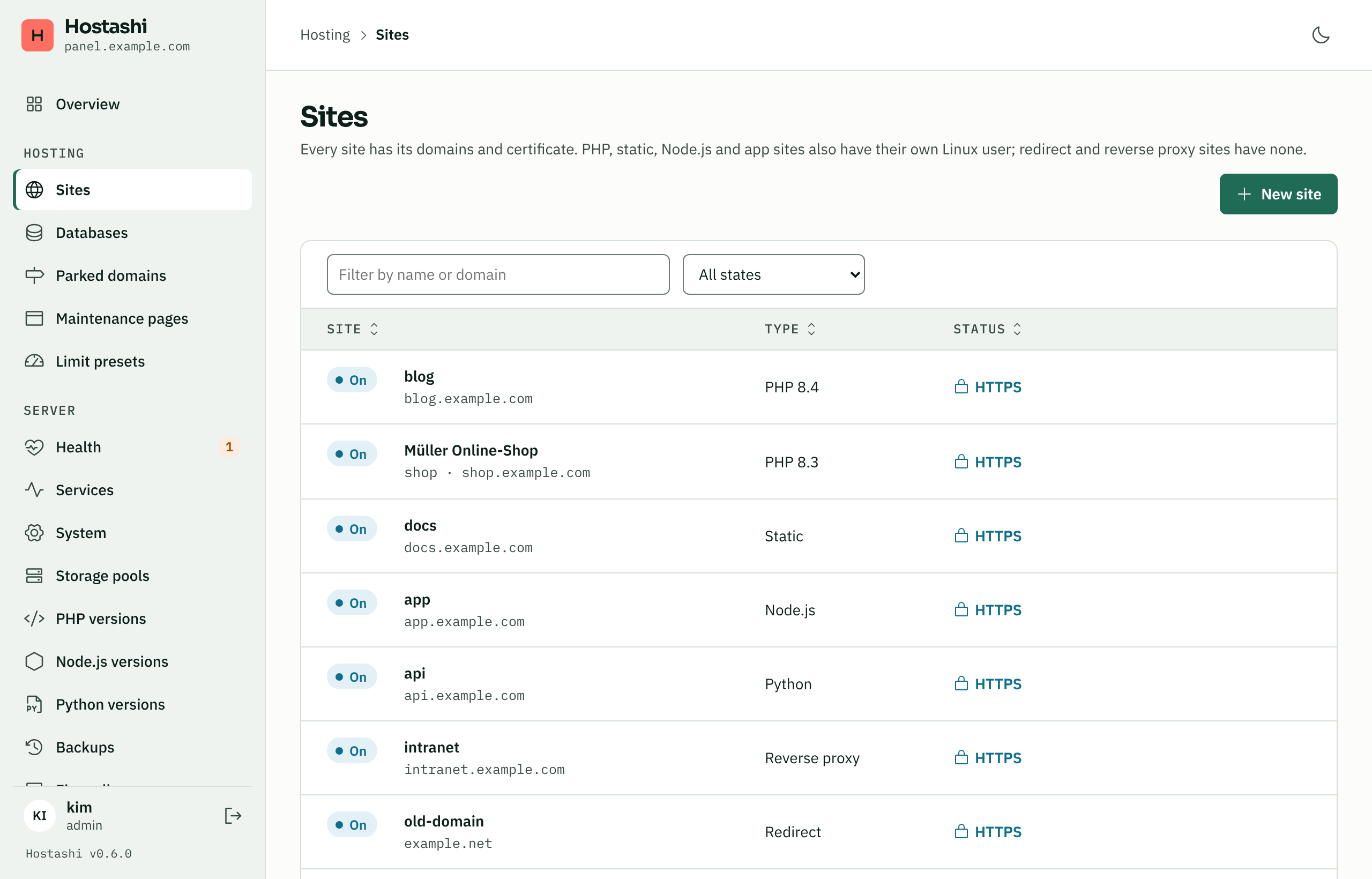
Site types
| Type | For | Linux user and files |
|---|---|---|
| PHP | WordPress, Laravel, TYPO3 and other PHP software | yes |
| Static | HTML, CSS and JavaScript, for example the build of a static site generator or a single-page app | yes |
| Node.js | an app such as Next.js, Nuxt or Express that runs all the time; requests go to its port | yes |
| Python | a Django, Flask or FastAPI app that runs all the time, from its own environment; requests go to its port | yes |
| App | a program of your own, for example a Go or Rust service, that runs all the time; requests go to its port | yes |
| Reverse proxy | passing every request to another web server, for example an app in your network | no |
| Redirect | sending every address to another one, for example an old domain to the new one | no |
A site without a Linux user has no files, cron jobs, SSH access or limits. Site types describes each type and how to change it later.
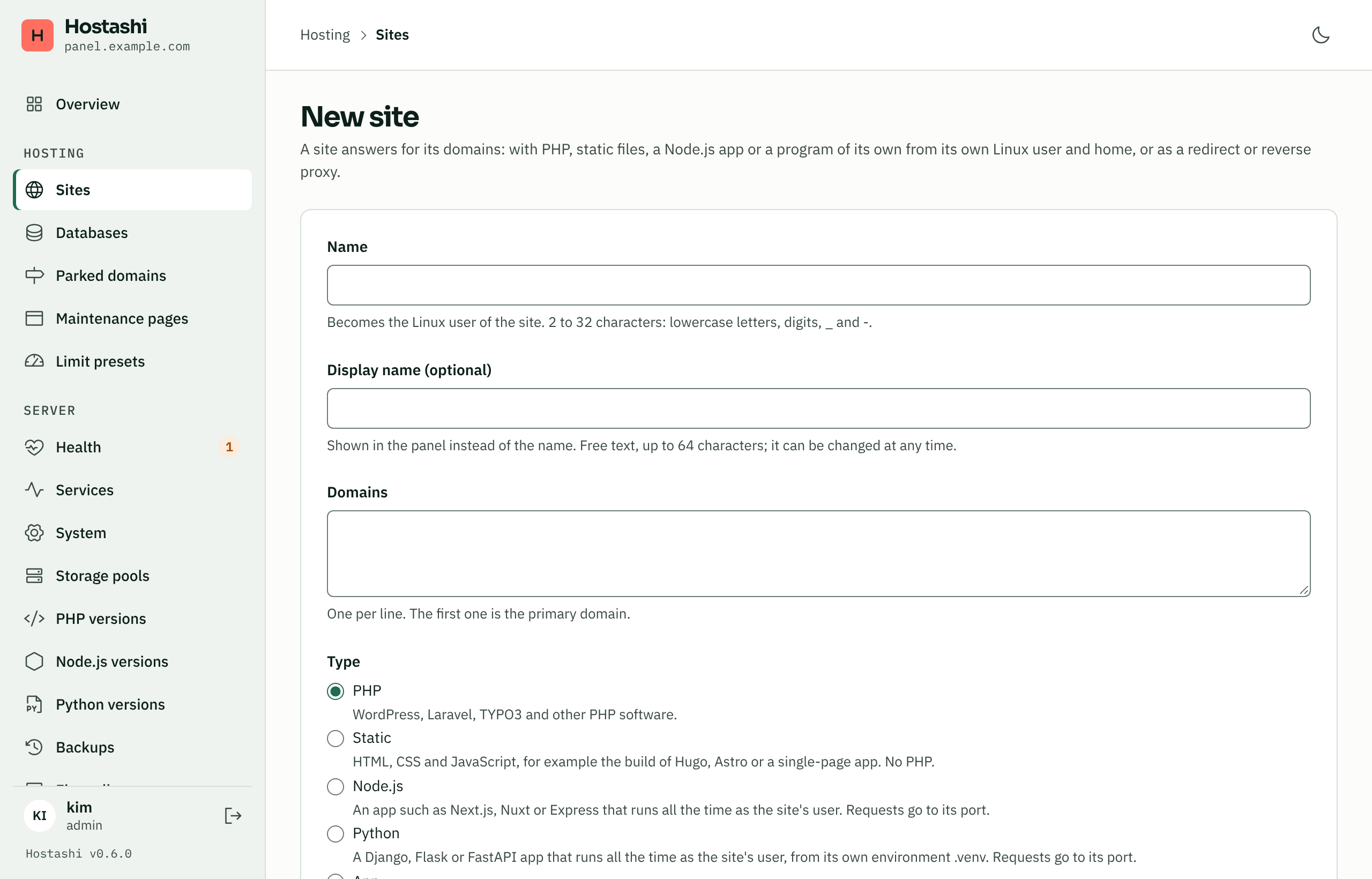
Create a site
- Open Hosting → Sites and choose New site.
- Name: 2 to 32 characters, lowercase letters, digits,
_and-. For sites with files the name is also the Linux user and the home folder,/home/<name>. - Display name (optional): free text up to 64 characters, shown in the panel instead of the name. It can be changed later, see Rename a site.
- Domains: one per line. The first one is the primary domain.
- Type: see the table above. For PHP choose the version; only installed versions are listed (more under Server → Runtimes › PHP). For PHP also choose the Application, such as WordPress or Laravel. It brings the hardening rules, see Application profiles.
- HTTPS with a Let's Encrypt certificate: leave it on. The domains must already point to this server, see Domains and HTTPS.
- If the server has more than one storage pool, choose where the site's home lives. A site stays on its pool.
Choose Create site. The panel opens the new site; it is live right away. Until the certificate is there, it answers over HTTP.
Upload your files with SFTP (SSH and SFTP) or the file manager. For PHP and static sites, the web root is /home/<name>/htdocs; another folder can be set on the site's App › Web tab.
The tabs of a site
| Tab | What you do there |
|---|---|
| Overview | state, display name, copy and staging, availability (enable, disable), delete |
| Domains & HTTPS | domains, certificate, HSTS, security headers, real visitor address |
| Access | IP rules and password protection |
| Web | web root folder, single-page app fallback, asset caching; the app, proxy or redirect settings; search engines (noindex); changing the type |
| Files | the file manager |
| Git | deploys from a Git repository, rollbacks and the webhook |
| PHP | PHP version and settings |
| Cache | the page cache and the object cache (PHP sites) |
| Cron | scheduled jobs |
| SSH & SFTP | keys for logging in as the site's user |
| Limits | CPU, memory, processes and disk |
| Logs | the site's web server and PHP logs |
| nginx | own nginx directives (admins only) |
Tabs that do not apply to a site's type are not shown.
Rename a site
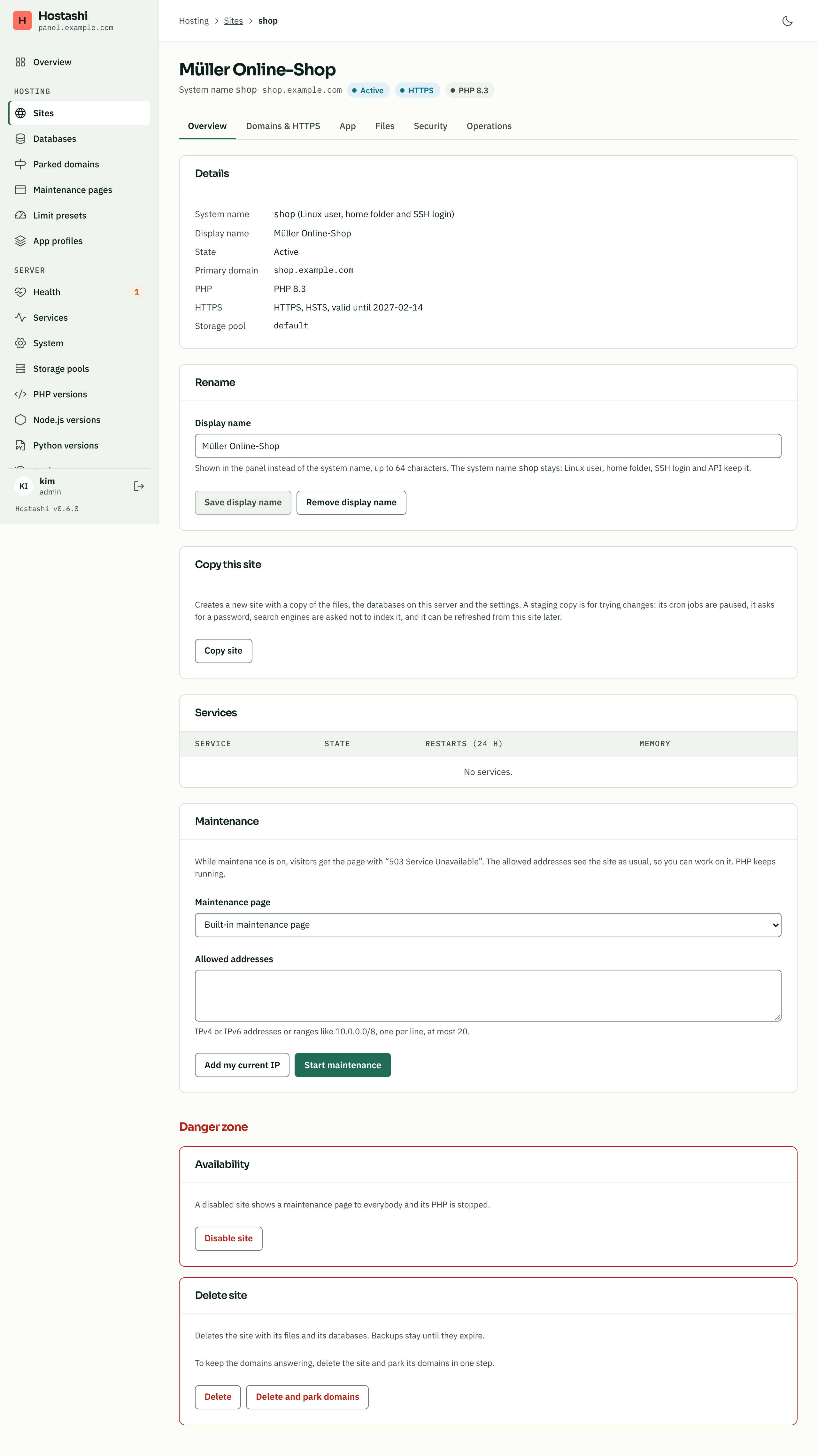
Open the site, choose Actions → Rename… in its header, set the Display name and choose Save display name. The panel then shows it in the site list and as the page title; Remove display name goes back to the name.
The name you chose when creating the site stays the site's system name: the Linux user, the home folder /home/<name>, the SSH and SFTP login, and the name in the API and command line. The site page always shows it next to the display name. Changing the display name changes nothing on the server and needs no restart.
The display name is plain text: up to 64 characters, no line breaks and no control characters.
Disable a site
On Overview → Availability, Disable shows a maintenance page to every visitor and stops the site's PHP. Files, databases and settings stay. Enable brings it back.
Your own maintenance and parking pages
Under Maintenance pages you can upload your own page: one .html file, or a .zip file with index.html at the top and its CSS, JavaScript, images and fonts. Write %%DOMAIN%% in the HTML where the visitor should see the domain they opened, for example <p>%%DOMAIN%%</p>. The web server puts in the visited domain in lower case, such as www.example.com; internationalized domains appear in their ASCII form (xn--…). The preview shows example.com. The placeholder is replaced in HTML files only, not in CSS or JavaScript.
Delete a site
On Overview → Delete site. This deletes the site with its files and databases and cannot be undone. Backups stay until they expire.
To keep the domains answering, you can park them in the same step: choose the domains to park and a parking page. Domains you leave out are free afterwards. See Parked domains.