Firewall
For: panel admins.
Hostashi runs its own firewall (nftables). It lets in SSH, the websites and the panel, and drops everything else. Outgoing traffic is not limited. If your provider has a firewall in front of the server as well, that one still applies: open a port there too.
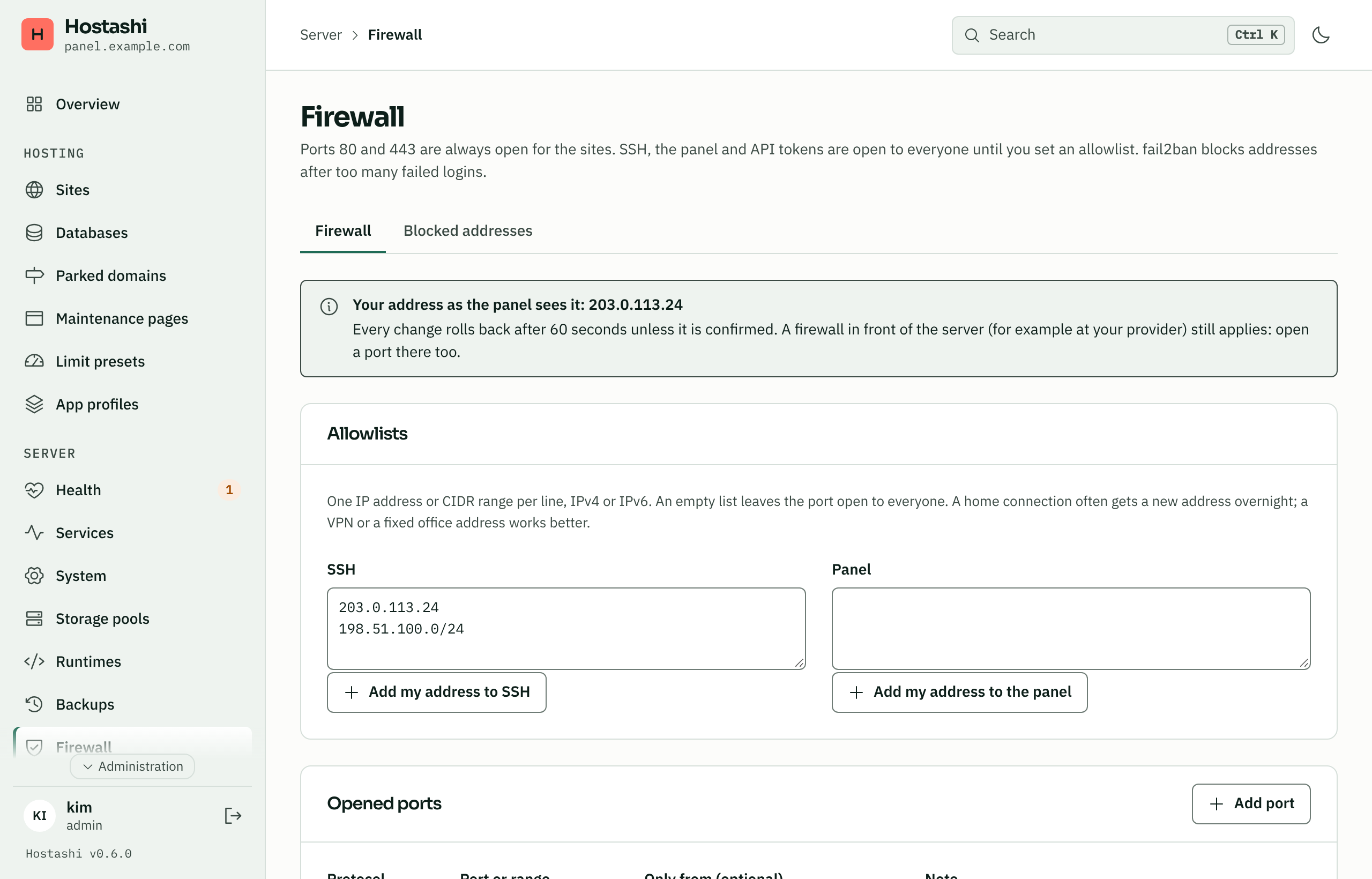
Open Server → Firewall. The tab Firewall holds the rules below and the allowlist for API tokens; the tab Blocked addresses shows what fail2ban blocks (see Blocked after failed logins).
What is always open
Ports 80 and 443 (TCP, and UDP for HTTP/3) are always open for the sites and cannot be closed in the panel. SSH (22) and the panel port (8443) are open to everyone until you set an allowlist.
Allowlists for SSH and the panel
Under Allowlists, enter the addresses or networks (for example 203.0.113.7 or 198.51.100.0/24) that may reach SSH or the panel. Everyone else is dropped. The page shows your address as the panel sees it, so you do not lock yourself out.
If the panel runs on port 443 under its own host name, its allowlist is checked by nginx instead (see Install).
Where API tokens are accepted from is set on the same page, in its own card; see API tokens.
Open more ports
Under Opened ports, add a port or a range (3000 or 6000-6010), the protocol and, optionally, the addresses it is open to.
Every change rolls back unless you confirm it
A wrong rule could cut you off, so each change is tested first:
- Panel access changed: your browser checks that the panel still answers and confirms on its own.
- SSH allowlist changed: the panel asks you to open a new terminal and log in over SSH. Keep the session you have open until that works, then choose SSH works, keep the rules.
Without a confirmation the rules roll back after the time shown on the page. The page then says that the last change was rolled back.
Blocked after failed logins
Independent of these rules, fail2ban blocks addresses for a while after repeated failed SSH or panel logins, and after repeated wrong passwords on a site with access protection. An address that is blocked again and again is blocked from everything, SSH included, for a week.
For IPv6, fail2ban blocks the whole /64 network of the address, because one connection usually has a /64 of its own and an attacker can pick a new address in it for every attempt. When the /64 also holds an address of this server (a network shared with other customers), only the single address is blocked. Unblocking an address lifts the block of its /64.
The tab Blocked addresses on the Firewall page shows each blocked address, why it was blocked, since when and until when, and how many failed logins each kind of protection has counted. Filter the list by Block type (SSH logins, panel logins, password-protected sites, repeat offenders) and by IP address: a part such as 203.0.113., a full address, or a range such as 203.0.113.0/24 or 2001:db8::/32. The list shows 50 addresses per page, newest first, so it stays quick with thousands of blocked addresses. When a customer or you were locked out by mistake, choose Unblock next to the address and confirm. The address is unblocked everywhere at once; new failed logins block it again. Every unblock is in the audit log.
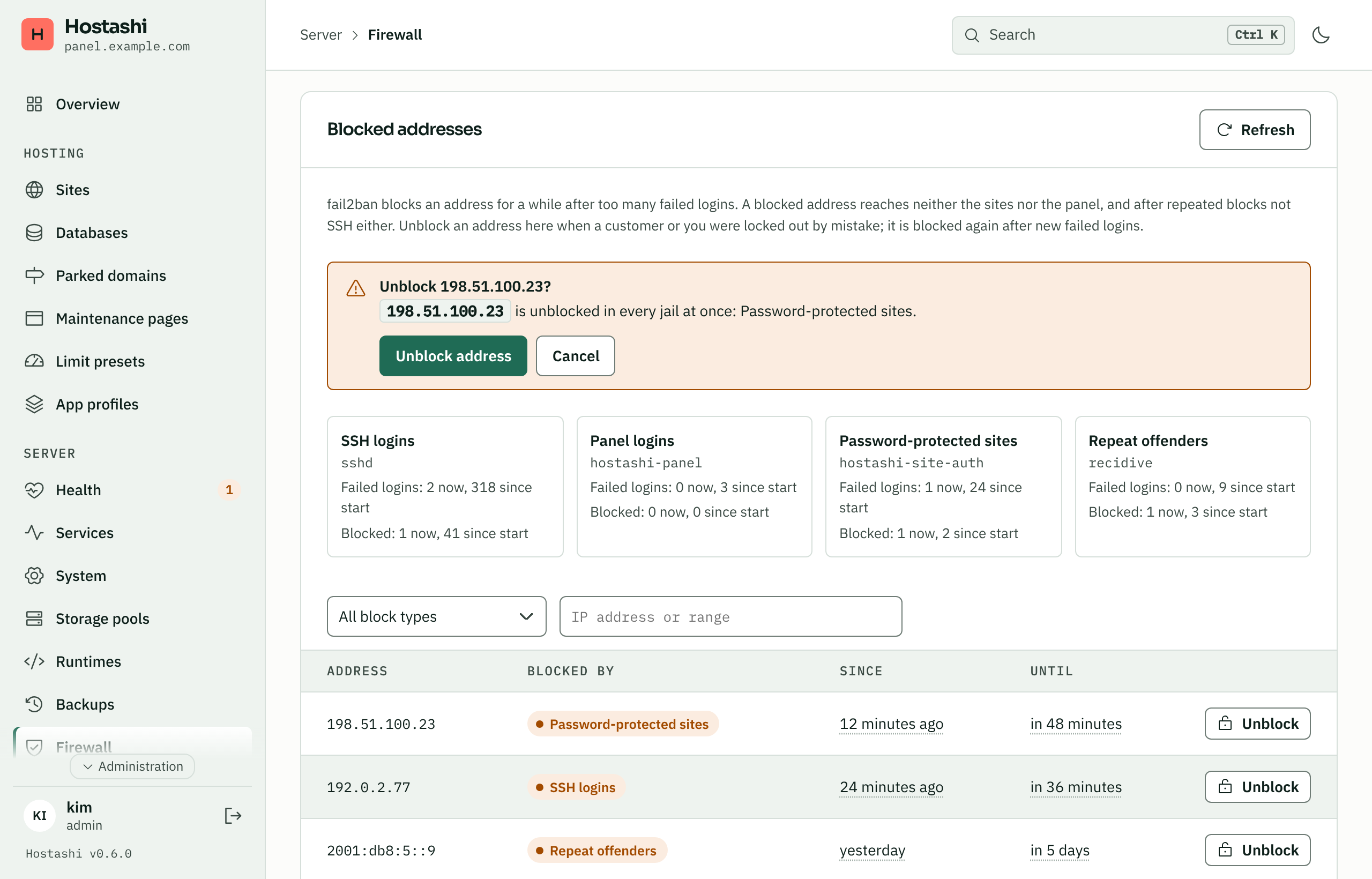
On the command line, hostashi firewall bans lists the blocked addresses (-jail JAIL and -address TEXT filter like the page) and hostashi firewall unban ADDRESS unblocks one. If fail2ban does not run, the card says so and Health shows a warning.
Without the Hostashi firewall
A server installed with --no-firewall has no Hostashi firewall; the page says so. Use this only behind a provider firewall. To add more ports at install time instead, use --firewall-allow PORT/PROTO.